You should use Private DNS
Tracking has gotten out of hand. Apps, websites, ad networks and sometimes the phone itself keep sending data about what you do to someone else’s servers. At this point I don’t think a privacy-focused DNS is optional, I think everyone should have one turned on. It won’t block everything (nothing will), but it blocks a lot more than I expected when I first set it up.
I’m a big Android fan, and one of the first things I do on any new phone, before I even install apps, is change one setting: Private DNS. Not just my own phone either. My parents, siblings and cousins all have it set up, mostly because I did it for them.
I’ve been using it for about two years now. I almost never see ads in the browser anymore. Brave already blocks ads by itself, so that’s not saying much, but even in Chrome I can’t remember the last time I saw one.
It works on Wi-Fi and mobile data, across the whole phone, with no app running in the background.
I use NextDNS for this. The free plan has been enough for me.
First, what is DNS?
Whenever you open a website, or an app talks to its server, your phone first has to find out the server’s IP address. It asks a DNS resolver something like “what’s the IP for example.com?” and gets back 93.184.215.14.
By default that resolver is your Wi-Fi router or your mobile operator, and there are two problems with that.
First, normal DNS is plain text. Your ISP, and anyone else on the same network, can see every domain your phone looks up.
Second, the resolver answers everything. Ad servers, trackers, phishing sites, malware domains, it’ll happily give you the IP for all of them.
What is Private DNS?
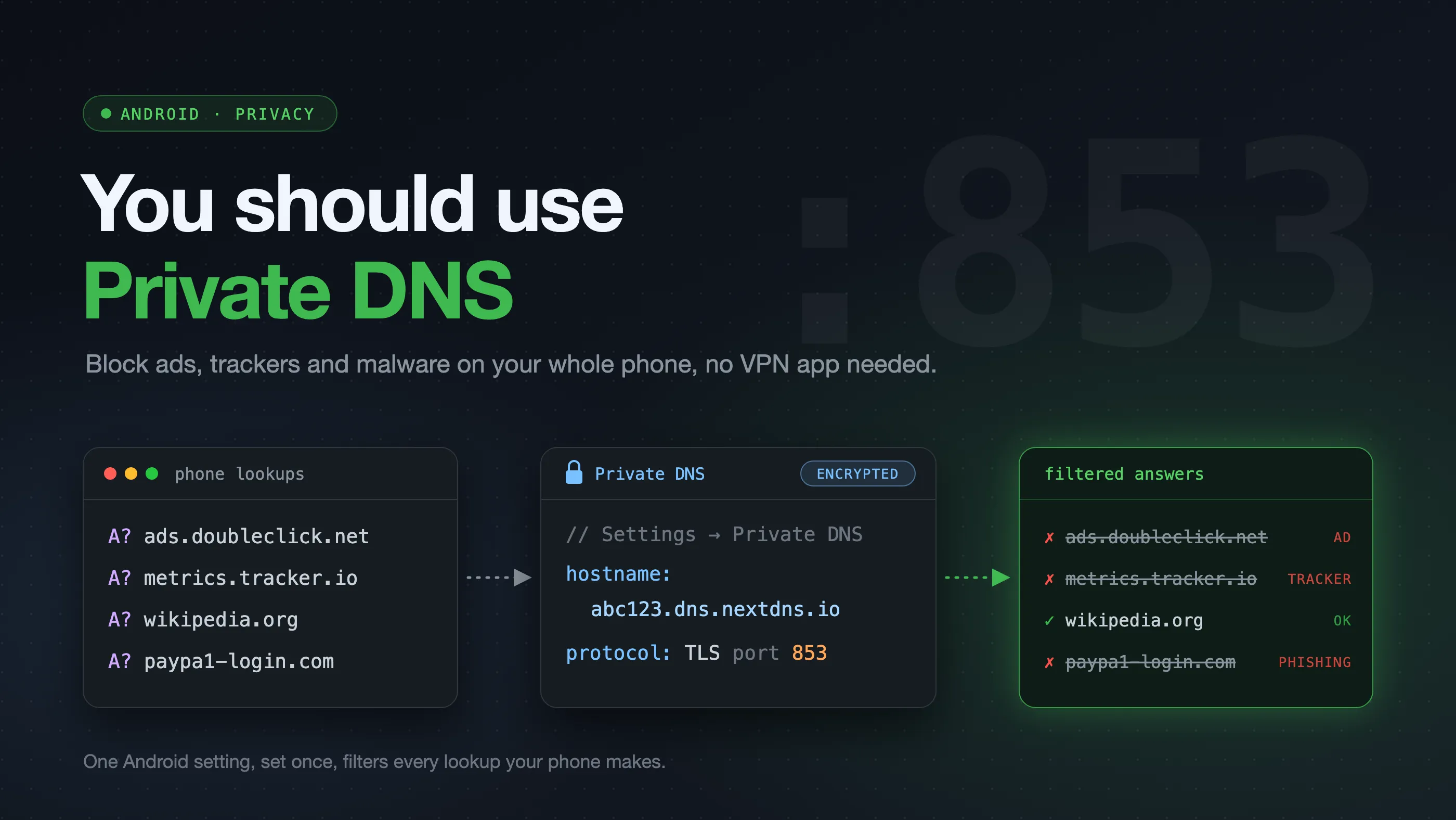
Private DNS is an Android setting that sends your DNS queries over an encrypted connection (DNS over TLS) to a resolver you pick.
Default:
  Phone --plain text--> ISP / router DNS --> answers everything

With Private DNS:
  Phone --encrypted--> Your chosen resolver --> answers, or blocks
The encryption is nice by itself, but the part I actually care about is that you choose the resolver. Pick one that filters, and it can just refuse to answer for domains you don’t want your phone talking to.
So when an app tries to load an ad from ads.some-network.com, the resolver says the domain doesn’t exist (or returns 0.0.0.0), and the ad never loads. Same thing for a tracker, or a phishing link someone forwarded on WhatsApp.
Why not just use an ad blocker app?
Most system-wide ad blockers on Android work by setting up a local VPN on the phone and pushing all traffic through it. I used these for a while and they always felt a bit off.
The app has to stay running all the time, and Android is aggressive about killing background apps, so every now and then it would silently stop working. There’s a key icon sitting in the status bar forever. Android also only lets you run one VPN at a time, so if I needed a real VPN for work, the ad blocker had to go. And it’s one more app that sees all my traffic, using more battery while it does.
Private DNS is built into Android, so there’s no app that can get killed in the background. I set it once and haven’t touched it since.
Why NextDNS?
There are a few filtering DNS providers around: AdGuard DNS, Cloudflare’s family resolvers, Quad9 and others. I went with NextDNS because you can configure it. You get your own profile and decide what gets blocked.
The free plan gives you 300,000 queries a month, which has been plenty for one phone. If you go over, DNS still works, it just stops filtering until the next month. The paid plan is cheap if you need more.
Blocking ads and trackers
Under Privacy you can add blocklists. I use the NextDNS Ads & Trackers list, and it’s been enough for me.
There’s also a native tracking protection option for your phone’s OS and brand, which blocks the telemetry some phones and apps send home in the background.
Sites that used to be covered in banner ads load noticeably faster now, since the phone isn’t downloading all that junk.
Blocking malware and phishing
I think this part gets overlooked. Ads are annoying, but malware and phishing domains can actually hurt you.
Under Security you can turn on threat intelligence feeds, which block domains known for malware, phishing and scams. You can block newly registered domains, which catches a lot of scam sites since they’re often only a few days old. There’s typosquatting protection for look-alike domains like gooogle.com, and cryptojacking protection for sites that try to mine crypto on your phone.
It doesn’t replace being careful. But if I or someone in my family taps a dodgy link in an SMS, there’s a fair chance it won’t even load.
Parental controls
Useful if you hand your phone to kids or set one up for them.
Under Parental Control you can block whole categories (porn, gambling, dating, piracy), block specific apps or sites like TikTok or a particular game, force SafeSearch on search engines and Restricted Mode on YouTube, and set a “recreation time” schedule so games and social media only work during certain hours.
Since it all happens at the DNS level, it applies to every browser and most apps on that phone, not just Chrome. Point Private DNS on their phone to your NextDNS profile and you’re done.
Seeing what your phone is doing
The Analytics and Logs pages show which domains your phone talks to and what got blocked. The first time I looked, I was surprised by how many tracking domains a phone contacts while it’s just lying on the table.
If something breaks, I check the logs, find the blocked domain and add it to the Allowlist. That’s happened maybe a handful of times so far.
If you’d rather NextDNS didn’t keep logs, you can turn logging off, or pick a short retention period and the region where logs are stored.
Setting it up on Android
- Create a free account on nextdns.io. You’ll get a profile with an ID like
abc123. - Pick your blocklists, security and parental control settings in the dashboard.
- On the Setup page, under Android, copy your hostname. It looks like
abc123.dns.nextdns.io. - On your phone, go to Settings → Network & internet → Private DNS. The path is a little different on each brand, so the quickest way is to search “Private DNS” in Settings.
- Choose Private DNS provider hostname and paste your hostname.
Private DNS provider hostname:
  abc123.dns.nextdns.io
That’s it. Open a couple of websites and then check the Logs page on NextDNS. You should see your queries showing up.
If you can’t find the setting or get stuck somewhere, search YouTube for “private DNS” plus your phone model. There’s almost always a short video that walks through it step by step for your exact phone.
You can also put a device name in front of the hostname, like Pixel-abc123.dns.nextdns.io, so you can tell which phone a query came from in the logs.
Once it’s set up, I’d also install NextDNS Manager. It’s a free, open-source app (not made by NextDNS) that puts the dashboard on your phone. You can check logs and analytics, see what got blocked, and turn blocklists and settings on or off without opening a laptop. It’s the easiest way to allowlist a domain when something breaks.
NextDNS works on iPhones, laptops and routers as well. Set it on your home router and every device on your Wi-Fi gets it, smart TV included.
What it can’t do
The biggest one is that it won’t block ads inside apps like YouTube, Instagram and Facebook. These apps serve ads from the same domains as the actual videos and posts. Block those domains and the app itself stops working. The same goes for any website that serves ads from its own domain.
It’s also not a VPN. It hides your DNS lookups from your ISP, but your ISP can still see which IP addresses you connect to.
You’re trusting NextDNS instead of your ISP. I’m fine with that, but it is a tradeoff, and you should know you’re making it.
And once in a while something breaks. A blocklist catches a domain an app actually needs, or a hotel Wi-Fi login page won’t open. Check the logs and allowlist the domain, or switch Private DNS off for a minute.
Wrapping up
I started using it for the ad blocking. The malware blocking is why I keep telling family and friends to set it up.
It’s free, setup takes about five minutes, and after that I never have to think about it. If you’re on Android, I’d really recommend setting it up.
Until next time.